The email
This is a promotional email for Linx Systems noise-cancelling headphones, built in MJML. It has a black background, yellow accents, a hero image, a two-column brand block, a pill-shaped "SHOP NOW" button, social icons, and a legal footer. It is a dark-only design, so the email does not offer a light version.

My local live preview of an earlier version of the email. The button is white with black text and the social icons include Twitter. The final version has a grey button with white text and a YouTube icon instead.
What this post covers: the final code and the problems I met while building it.
Clients I retested most: Outlook 2024 (dark) (Win 11), Outlook 2024 (120 DPI), and Outlook 2021 (150 DPI), many times for each fix.
Result: in the end, all 130 clients I tested worked across desktop, tablet, and mobile. Test in the clients your audience uses before relying on any of it.
1. Keeping the background dark
The head of the email tells clients that it supports dark only, and switches off Apple's data detectors (more on those below):
<meta name="color-scheme" content="dark">
<meta name="supported-color-schemes" content="dark">
<meta name="format-detection" content="telephone=no">
<meta name="format-detection" content="date=no">
<meta name="format-detection" content="address=no">
<meta name="format-detection" content="email=no">
The background is then forced three ways, so each kind of client gets the same black. I add a force-dark class to the body and to every section, and the CSS targets the class, the tables, and the cells:
<mj-body background-color="#000" css-class="force-dark">
  <mj-section background-color="#000000" padding="20px 0" css-class="force-dark">
/* base */
body, .force-dark, .force-dark table, .force-dark td { background-color: #000000 !important; }
/* clients that use prefers-color-scheme */
@media (prefers-color-scheme: dark) {
body, .force-dark, .force-dark table, .force-dark td { background-color: #000000 !important; }
}
/* Outlook attribute selectors */
[data-ogsc] body,
[data-ogsc] .force-dark,
[data-ogsc] .force-dark table,
[data-ogsc] .force-dark td { background-color: #000000 !important; }These rules only change the background of tables and cells. They don't touch the pixels of the images, so the product photos stay as they are while the colour around them is held steady.
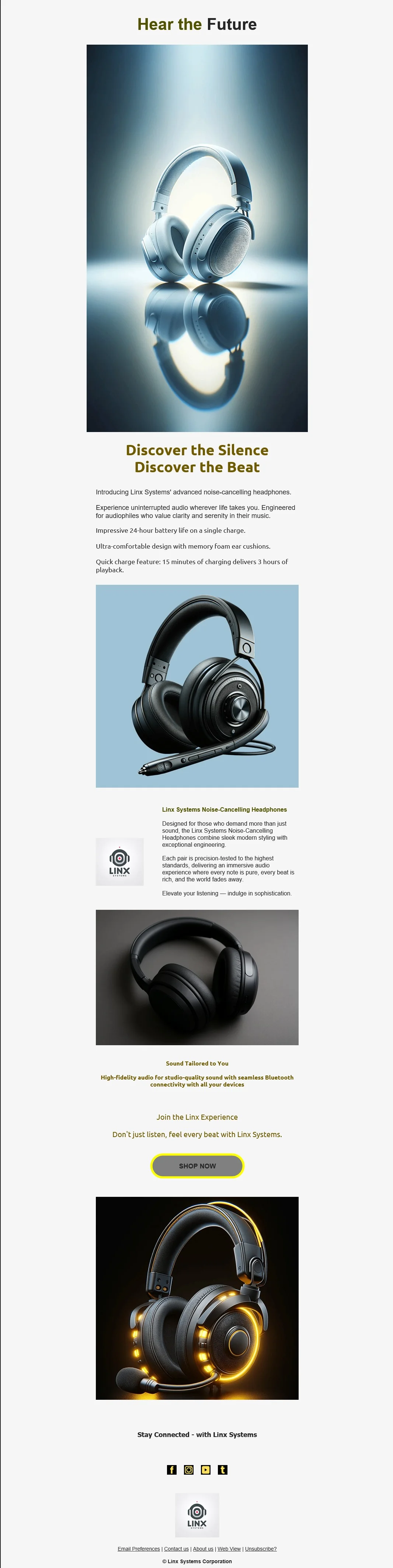
The email with its colours inverted by a dark mode client (client not recorded): a light background, dark olive headings in place of the yellow, and the grey button with its yellow border. The photos look the same as in the black version.
2. The button: colours changing, and square corners in Outlook
Problem: the button's colours changed in dark mode, in Outlook.com and the Outlook app, and in Outlook for Windows. Separately, classic Outlook draws every button as a plain rectangle, because its Word-based engine ignores border-radius. The only way to get a rounded shape there is VML.
So the button is built twice. Classic Outlook gets a VML rounded rectangle, and every other client gets the normal MJML button. Each conditional comment sits inside an mj-raw tag so MJML passes it through untouched:
<!--[if mso]>
<div align="center">
<v:roundrect xmlns:v="urn:schemas-microsoft-com:vml" xmlns:w="urn:schemas-microsoft-com:office:word"
  href="https://example.com" style="height:62px;v-text-anchor:middle;width:250px;"
  arcsize="50%" strokecolor="yellow" strokeweight="6px" fillcolor="#808080">
<w:anchorlock/>
<center style="color:#ffffff;font-family:Helvetica, Arial, sans-serif;font-size:18px;font-weight:bold;">SHOP NOW</center>
</v:roundrect>
</div>
<![endif]-->
<!--[if !mso]><!-->
<mj-button css-class="button" align="center" href="https://example.com" width="250px"
inner-padding="20px" background-color="#808080" font-size="18px" font-weight="bold"
color="white" border="solid yellow 6px" border-radius="45px" padding="45px">
SHOP NOW
</mj-button>
<!--<![endif]-->The two versions share the same fill (#808080), yellow 6px border, and white text, so the button looks the same wherever it renders. arcsize="50%" gives the VML button a full pill shape, matching what border-radius="45px" produces in other clients.
Why the button is grey. In the original design mock the button was yellow. In dark mode the colour inversion of the yellow button didn't work well, so I changed the fill to grey. I wanted to stay on brand, so the yellow is still there as the 6px border and in the headings. That was a trade-off: the button no longer matches the mock exactly, and you could call it graceful degradation. A button that holds up in every client is better than the exact colour breaking in some of them.
The grey fill caused its own problem. The grey fill went wrong in the conversion between dark and light mode. As I remember it, fallbacks resolved this, with the VML version for classic Outlook being the main one. I'm not certain which fallback did the most.
Outlook at 120 DPI. The button also had a problem in Outlook 2024 at 120 DPI. As I remember it, that was fixed with the VML button together with !important in the CSS. I haven't re-checked exactly which rules were needed.
I still haven't recorded what each client did to the button's colours before these fixes, so I can't describe the original symptom more precisely than that.
3. The social icons
The built-in mj-social icons come with their colours baked into the icon images. I had problems with them in dark mode, so I changed approach: I supply my own icon images through the src attribute on each element, and set the element background myself:
<mj-social font-size="18px" icon-size="26px" mode="horizontal" padding-top="0" padding-bottom="0">
  <mj-social-element name="facebook" href="https://facebook.com"
    src="https://i.ibb.co/SDkQY5BN/filled-facebook-flat-1.png"
    background-color="#000000" padding="0px 10px" />
  <mj-social-element name="instagram" href="https://instagram.com"
    src="https://i.ibb.co/Wp74NVDy/filled-instagram-flat-2.png"
    background-color="#000000" padding="0px 10px" />
  ...
</mj-social>
The lesson is the same as in my earlier dark mode post: anything with colours baked into an image or a component is outside your CSS, so replace it with something you control.
4. Blue text in the footer (Apple data detectors)
Problem: the footer address and phone number showed up as blue text. Apple's mail apps scan text for things that look like phone numbers, addresses, dates, and email addresses, and turn them into blue links. A footer is the most likely place to trigger it. This is the type of text it affects, with placeholder details:
<mj-text align="center" color="white" font-family="Arial, sans-serif" font-size="14px" padding="18px" line-height="1.5">
<strong>© Example Co.</strong><br /><br />
1 Example Street, Example Town<br />
Tel: +000 0000 0000
</mj-text>Fix: the four format-detection meta tags in the head (shown in section 1) tell Apple to stop. This email uses the tags only. In my Re-cafe newsletter I pair them with a CSS rule, in case a link still gets through, that makes any detected link inherit the surrounding colour:
a[x-apple-data-detectors] {
  color: inherit !important;
  text-decoration: none !important;
  font-size: inherit !important;
  font-family: inherit !important;
  font-weight: inherit !important;
  line-height: inherit !important;
}
5. Outlook 2021 (150 DPI) typography
In Outlook 2021 at 150 DPI I hit a rendering issue that I traced to Word's "advanced typography" setting in the reading pane. I didn't record the exact symptom, but Outlook 2021 (150 DPI) was one of the clients I retested most. The fix is a small block that switches the setting off for classic Outlook:
<!--[if mso]><xml><w:WordDocument xmlns:w="urn:schemas-microsoft-com:office:word"><w:DontUseAdvancedTypographyReadingMail/></w:WordDocument></xml><![endif]-->6. Columns not stacking or centring on mobile
Problem: the two-column brand block (30% logo, 70% text) wasn't stacking on mobile, and the text wasn't centring once it did. I found three causes:
- Media queries in an inlined style block were dropped. MJML's inliner silently discarded my
@mediarules from theinline="inline"block. They have to live in a normalmj-styleblock. - The
mj-columntag never appears in the compiled output. A selector onmj-columnmatches nothing. I give the columns acss-classinstead and target that. - An inline style blocks inheritance.
mj-textwritestext-aligndirectly onto its inner div, so centring the column isn't enough. The rule has to target.stack-col div.
<mj-column width="30%" css-class="stack-col"> ...logo... </mj-column>
<mj-column width="70%" css-class="stack-col"> ...brand copy... </mj-column>
@media screen and (max-width:480px) {
.stack-col { width: 100% !important; }
.stack-col div { text-align: center !important; }
}
@media screen and (max-width:720px) {
.stack-col { width: 50% !important; }
}
@media screen and (max-width:768px) {
.stack-col { width: 100% !important; }
.stack-col div { text-align: center !important; }
}One thing I noticed when writing this up: at 720px and below, both the 720px and 768px rules match, and the 768px rule comes last, so it wins and the columns go to 100%. That means the 720px two-column rule has no effect while the 768px rule follows it. Remove one or reorder them, depending on the layout you want.
Email fundamentals, and what to watch for
None of the problems above are unusual. They come from how email works, and a few habits would have caught most of them sooner:
- Email is tables, not the modern web. MJML writes the tables for you, but always read the compiled HTML, because that is what clients interpret (see the padding post).
- Clients edit your code. Some drop media queries, strip style blocks, or rewrite colours. Keep critical styles inline and don't depend on one feature working everywhere.
- Classic Outlook uses Word to render. No rounded corners, limited CSS, and different spacing. Use conditional comments and VML where the design needs it.
- Dark mode is not one behaviour. Declare your colour scheme, handle
prefers-color-scheme, and handle Outlook's attribute selectors. Then test, because each client behaves differently. - Anything baked into an image or a component is outside your CSS. Social icons are the classic case. Give images alt text and set their sizes explicitly.
- Turn off data detectors for addresses, phone numbers, and dates you don't want turned into blue links.
- Plan for mobile. Use real breakpoints, give columns a class you can target, and make buttons easy to tap. In this email the button goes full width on small screens.
- Mind the size. Gmail clips long messages at about 102KB of HTML, and the footer, with the unsubscribe link, is the first thing to disappear.
- Keep the legal footer. Include a physical address and an unsubscribe link, as required by laws like CAN-SPAM.
- Accept trade-offs. If the exact brand colour can't survive dark mode inversion, choose one that does and keep the brand elsewhere. Here the button fill is grey, and the yellow stays in the border and the headings.
- Test in many clients and log what you find. A short log of symptom, cause, fix, and where you retested saves you from repeating the work.
Test results from my runs
These grids come from my test runs while I was working on the dark mode fixes. In each grid, most clients show the email on black with yellow headings. Where a dark mode panel shows the email on a light background with dark olive headings, that is the colour inversion this post is about.
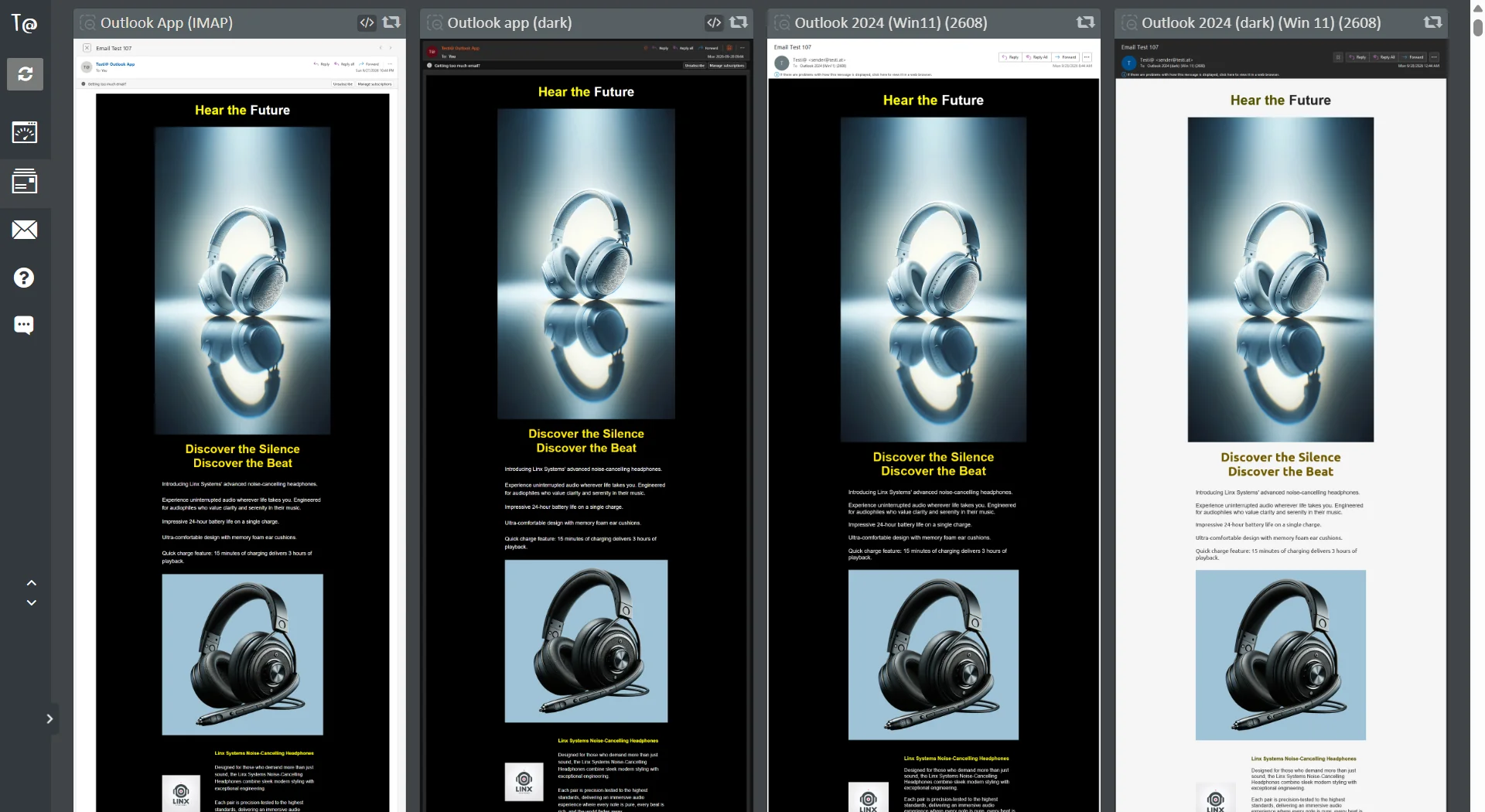
Outlook App (IMAP), Outlook app (dark), Outlook 2024 (Win11) (2608), and Outlook 2024 (dark) (Win 11) (2608). In this grid the Outlook 2024 (dark) panel shows a light background with dark olive headings, while the other three show black with yellow.
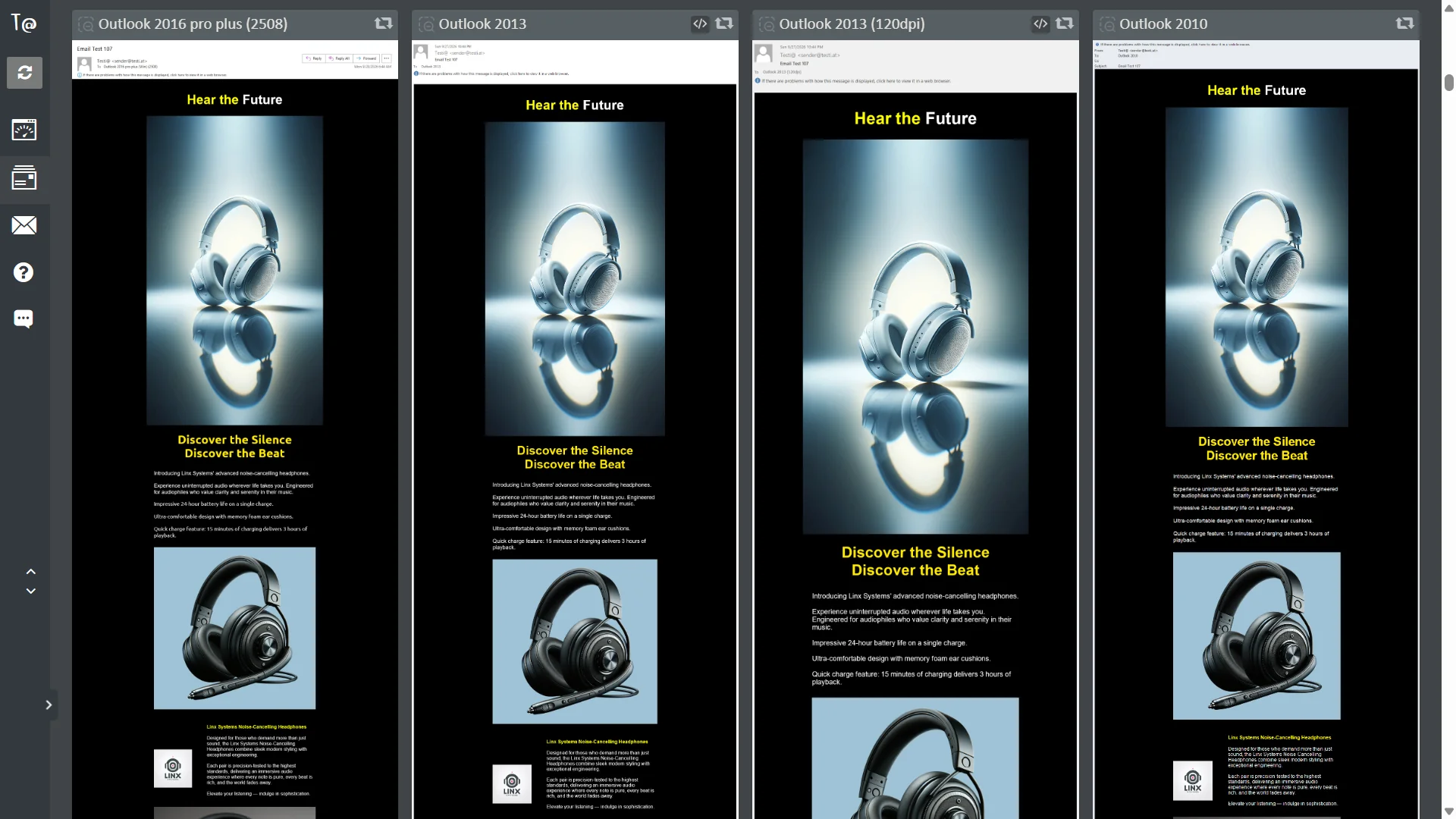
Outlook 2016 pro plus (2508), Outlook 2013, Outlook 2013 (120dpi), and Outlook 2010. All four show black with yellow headings.
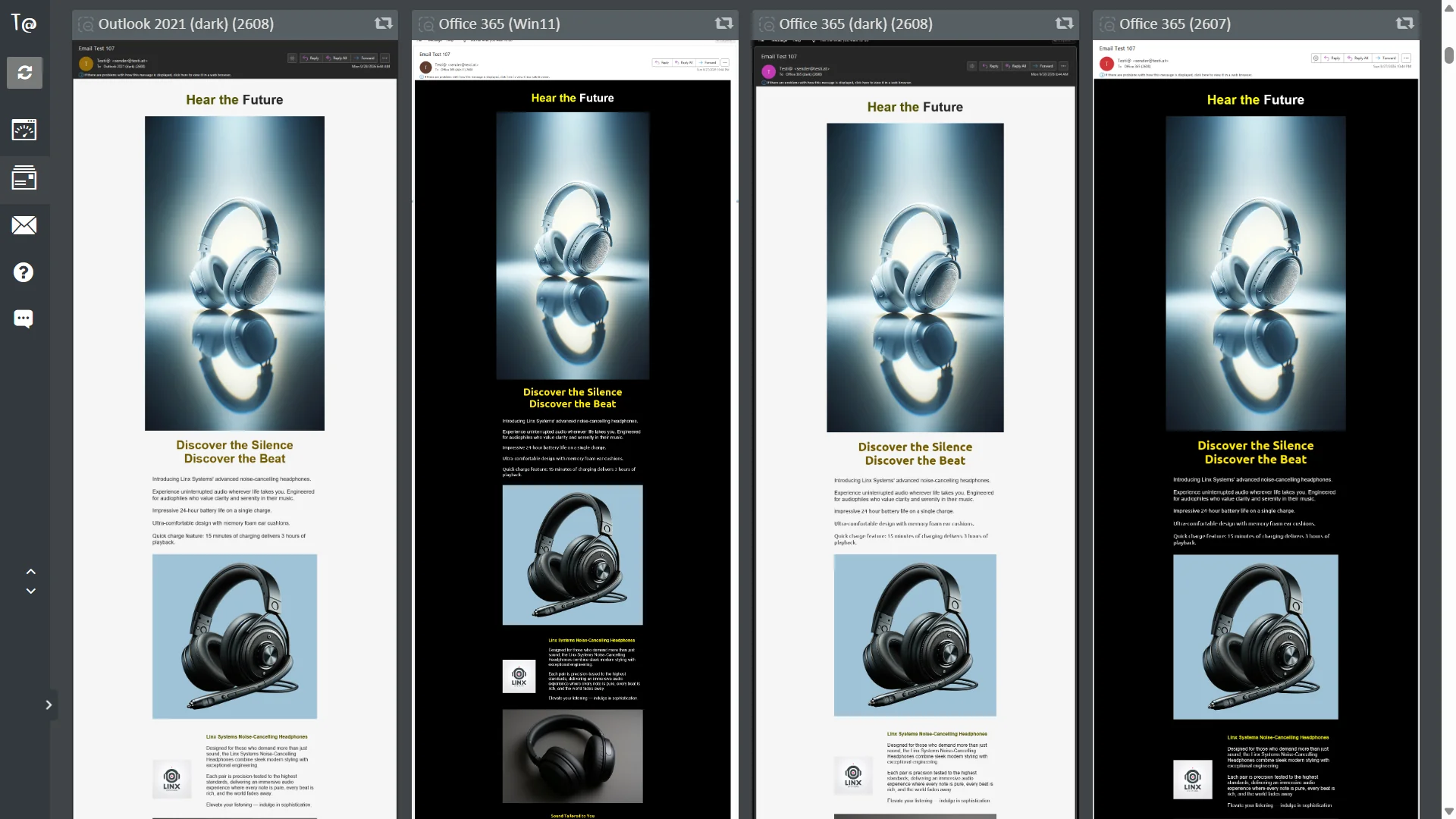
Outlook 2021 (dark) (2608), Office 365 (Win11), Office 365 (dark) (2608), and Office 365 (2607). The two dark panels show a light background with dark olive headings, and the other two show black with yellow.
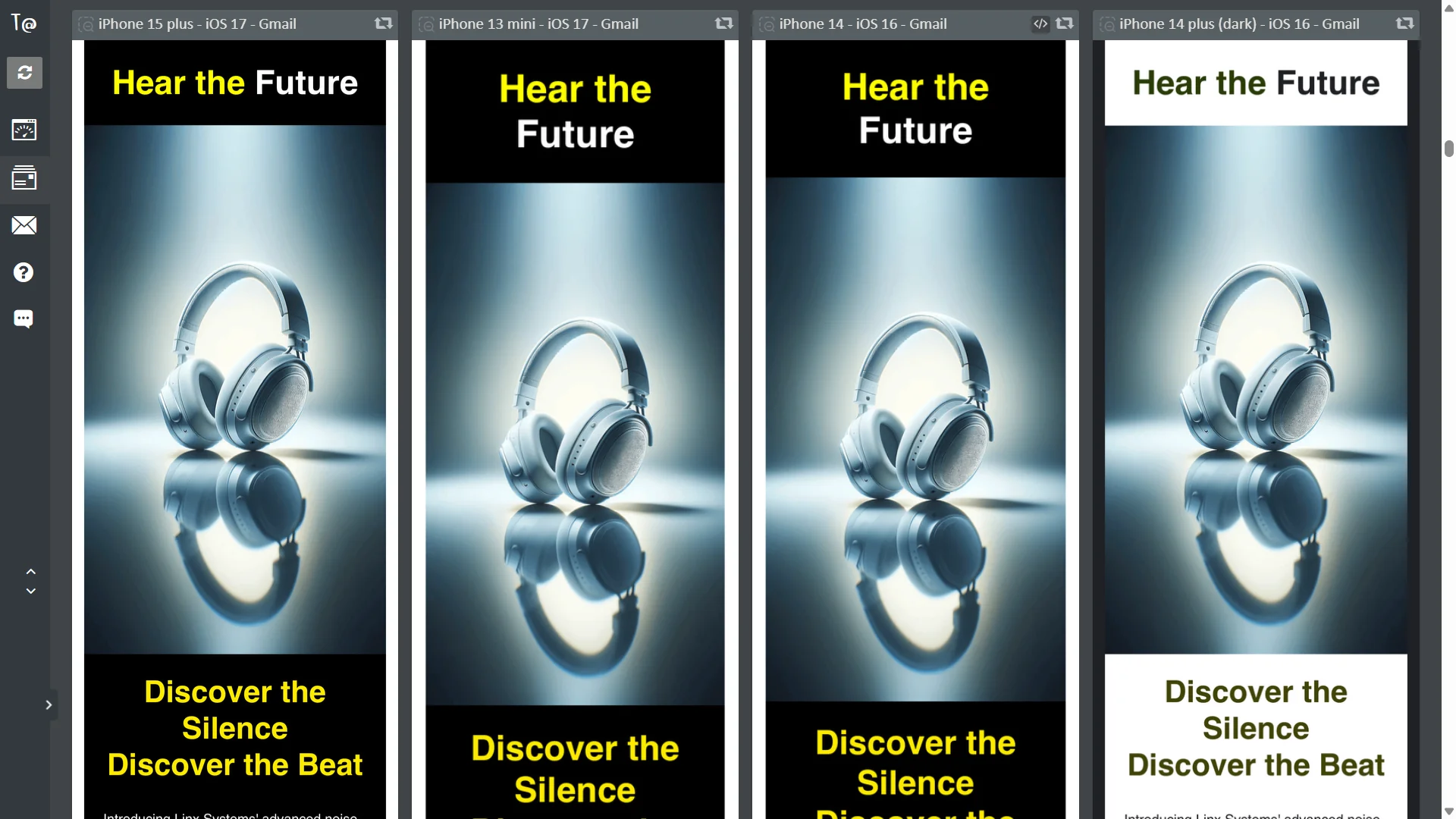
Gmail on iPhone 15 plus (iOS 17), iPhone 13 mini (iOS 17), iPhone 14 (iOS 16), and iPhone 14 plus (dark) (iOS 16). The dark panel shows a light background with dark olive headings, and the other three show black with yellow.
What I retested
- Outlook 2024 (dark) (Win 11), Outlook 2024 (120 DPI), and Outlook 2021 (150 DPI): retested many times after each fix.
- All 130 clients I tested worked in the end, on desktop, tablet, and mobile.
I haven't listed all 130 here, so test your own audience's clients before relying on any of this.
What I'd check next
In Outlook.com's dark mode, text colours use the data-ogsc attribute and backgrounds use data-ogsb. My background rule uses data-ogsc, so I'd test whether data-ogsb is the one that actually matters there. Next time I'd also record which clients I retested for each fix separately, not just the main three overall.
Related
More dark mode problems from a different newsletter: What dark mode inversion did to my newsletter, and the fixes and Footer text turning black in macOS dark mode.
Takeaway
Hold your colours with CSS you control, build a separate version for classic Outlook, and replace anything with colours baked in. Then test it in the clients that matter.